If you searched for Google Webmaster Tools, you’re looking for Google Search Console. Google renamed the product years ago, but the old name still shows up in bookmarks, old tutorials, and habit.
This guide explains what Search Console actually does today, how to set it up and verify a site, how to read the Performance report and the Page indexing report, and how to turn that data into something useful for SEO decisions and client reporting.

What Happened to Google Webmaster Tools?
Webmaster Tools was Google’s original name for its free site-monitoring service. Google renamed it Search Console in 2015, as part of a broader redesign.
There is no separate current product called Webmaster Tools. The old term persists mostly out of habit — old blog posts, agency documentation, and bookmarks never got updated. If someone tells you to “check Webmaster Tools,” they mean Search Console.
A few older Google developer URLs still contain the phrase webmaster-tools or webmasters, which adds to the confusion. The product behind them is Search Console.
What Is Google Search Console?
Google Search Console is a free tool that helps you monitor, maintain, and troubleshoot how your site appears in Google Search. It’s built for site owners, SEOs, marketers, and developers.
It reports on search traffic — queries, clicks, impressions, and average position — and it flags indexing and technical issues that affect whether Google can find and show your pages at all.
Search Console helps you understand how Google sees and surfaces your website. It does not guarantee rankings. It’s a measurement and diagnostic tool, not a ranking system.
Search Console does not show on-site behavior after a click, run A/B tests, or manage ad campaigns. For that, you need Google Analytics and other tools — more on that distinction shortly.
Crawling, Indexing, and Ranking: Three Different Things
A lot of confusion around Search Console comes from mixing up three separate steps. It’s worth being precise here.
Search Console gives you visibility and tools across all three stages, but it doesn’t control any of them directly. A page can be crawled and never indexed. It can be indexed and rank poorly, or not show up for a given search at all, depending on relevance and competition. Search Console reports on the state of each step — it isn’t the mechanism deciding the outcome.
What Can You Do With Google Search Console?
Search Console bundles several distinct tools under one dashboard, and it helps to think of them as separate instruments rather than one giant report. Each answers a narrow question well. Trying to get everything from one report is usually where confusion starts.
Here’s what each feature is actually for.
| Task | Search Console feature | What you learn |
|---|---|---|
| Monitor search traffic | Performance report | Queries, clicks, impressions, CTR, position |
| Check indexing status | Page indexing report | Which URLs Google indexed, and why others weren’t |
| Inspect one URL | URL Inspection | Indexing status, crawl info, live test |
| Help Google discover URLs | Sitemaps | Whether your submitted sitemap was processed |
| Monitor page experience | Core Web Vitals | Loading and interactivity metrics by URL group |
| Check structured data | Rich result reports | Errors or warnings in your structured data |
| Check inbound and internal links | Links report | Links Google associates with your site |
| Catch serious problems | Security & Manual Actions | Malware, hacking, or manual penalties |
Google Search Console vs Google Analytics
These two tools get confused constantly, mostly because they’re both free, both from Google, and both used for “SEO.” They answer different questions.
| Question | Search Console | Google Analytics |
|---|---|---|
| Where did visitors come from? | Google Search visibility | All acquisition channels |
| What search triggered visibility? | Yes — exact queries | Not in the same way |
| Clicks from Google Search | Yes | Sessions after arrival |
| Impressions in Google Search | Yes | No |
| On-site behavior | Limited | Yes |
| Conversions | Limited, depending on setup | Yes |
| Indexing problems | Yes | No |
In short: Search Console covers search visibility. Analytics covers on-site behavior. A complete picture usually needs both.
How to Set Up Google Search Console
- Go to search.google.com/search-console and sign in with a Google account.
- Click Add Property.
- Choose a Domain or URL-prefix property (explained below).
- Verify ownership using one of the available methods.
- Submit a sitemap, if you have one.
- Wait a few days for data to start populating.
- Inspect a few important URLs to confirm everything looks right.
A Domain property covers every subdomain and protocol variation (http, https, www, m.) under one view, but it only supports DNS verification. A URL-prefix property covers just the exact address you enter, but supports several verification methods — useful if you don’t control the domain’s DNS settings.
How to Verify Your Website in Search Console
Verification proves you control the site. You only need one method, not all of them.
- DNS verification: add a TXT record to your domain’s DNS settings. Required for Domain properties, and generally the most durable method.
- HTML file: upload a Google-provided file to your site’s root directory.
- HTML tag: add a meta tag to your homepage’s
<head>. Don’t remove it later — removing it can break verification. - Google Analytics: works if you already have GA tracking installed with edit access.
- Google Tag Manager: similar to the Analytics method, using an existing GTM container.
If you can access your domain’s DNS settings, DNS verification is usually the safest long-term choice — it survives website redesigns and CMS migrations better than a tag buried in a template.
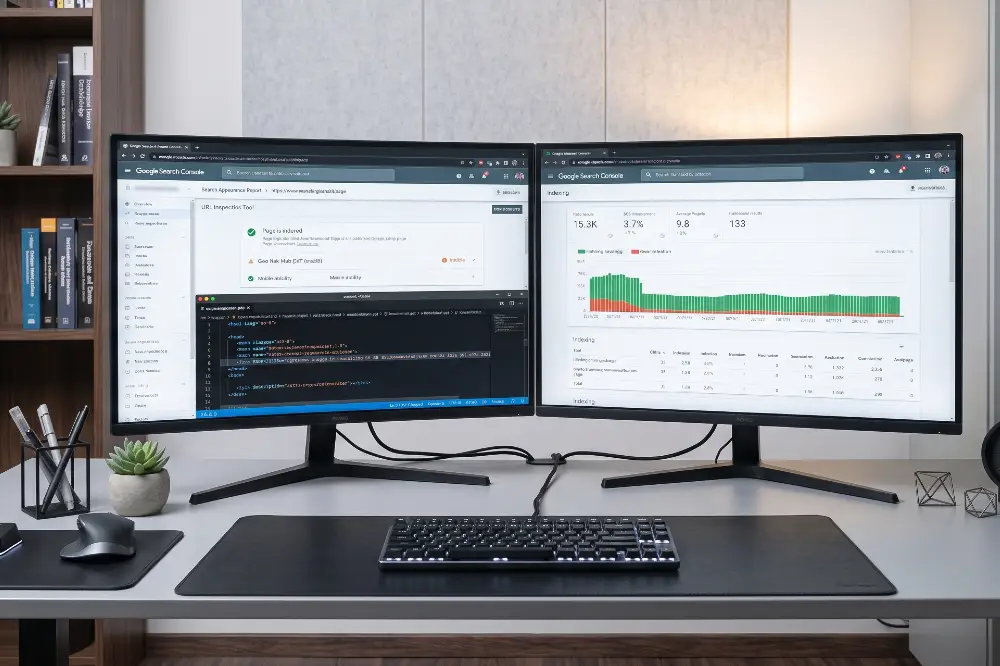
How to Use the Search Performance Report
This is the report most people open first. It breaks down search traffic by several dimensions.
You can break this data down by Queries (the exact search terms), Pages, Countries, Devices, and Search appearance (rich results, video, and so on).
The Pages view is useful for spotting which individual URLs carry most of your search traffic — often a small handful of pages account for most clicks. The Countries and Devices breakdowns matter more than people expect: a site performing well on desktop but poorly on mobile devices often has a page-experience problem worth chasing down separately.
Example: a page gets 20,000 impressions and only 120 clicks — a CTR under 1%. That’s worth investigating.
Start by checking: does the query match what the page actually offers? Is the title tag compelling, or generic? Does the meta description explain the value? What does average position look like — is the page buried on page two, where clicks are naturally rare regardless of the title?
Changing a title tag can improve CTR. It doesn’t automatically change your ranking position — those are two separate outcomes, and it’s worth tracking them separately.
How to Find Keywords in Google Search Console
Open the Performance report
Start from Search results, not the overview page.
Switch to the Queries tab
Sort by impressions to see what Google already shows your site for.
Scan for relevant queries
Look for terms tied to your actual business, not just high-volume noise.
Check impressions and CTR together
High impressions with low CTR usually points to a titling or relevance problem.
Check average position
A query near position 8–15 often has real upside with a smaller push than one buried at position 40.
Switch to the Pages tab
Find which page is actually receiving that query’s impressions.
Decide if the page needs work
Sometimes the fix is content. Sometimes it’s just a better title. Match the fix to the actual problem.
How to Check If Google Has Indexed a Page
Use the URL Inspection tool, in the search bar at the top of Search Console. Paste in the exact page URL.
It shows whether the page is indexed, when it was last crawled, and which URL Google selected as the canonical version if there were duplicates. You can also run a live test to see how the page looks to Google right now.
If a page isn’t indexed and you believe it should be, you can click Request Indexing. Google is explicit that this does not guarantee the page will be indexed or ranked — it just adds the URL to a crawl queue faster than waiting for natural discovery.
Google Search Console Page Indexing Report
This report replaced the older “Coverage” report. It groups every known URL into categories like Indexed, Crawled – currently not indexed, and Discovered – currently not indexed, plus reasons like duplicate content, noindex tags, or robots.txt blocks.
Not every URL needs to be indexed. Duplicate pages, filtered/faceted URLs, and intentionally noindexed pages showing up here is often correct behavior, not a bug to fix.
Focus on whether your important pages are indexed — not on driving the “not indexed” count to zero.
How to Submit a Sitemap
An XML sitemap is a file listing your site’s URLs, helping Google discover pages more efficiently. It’s not strictly required — Google can find pages through links too — but it can speed up discovery, especially on larger or newer sites.
- Generate an XML sitemap (most CMS platforms and SEO plugins do this automatically).
- In Search Console, go to Sitemaps under Indexing.
- Enter the sitemap path (usually
/sitemap.xml) and click Submit. - Check back for its status — success, or errors Google encountered reading it.
Submitting a sitemap is not the same as requesting every URL to rank, or even to be indexed. It’s a discovery aid, not a promise.
How to Use Search Console for SEO
Search Console gives you evidence — what’s being shown, what’s being clicked, what’s ranking where. It doesn’t automatically tell you which specific change will move a ranking. That interpretation step is still yours.
Common Google Search Console SEO Problems
These are the issues that show up most often once a site has any real amount of history in Search Console.
- Page not indexed — check the Page indexing report for the specific reason before assuming it’s broken. Not every “not indexed” URL is actually a problem.
- Crawled but not indexed — Google saw the page and chose not to index it, often a quality or duplication signal rather than a technical error.
- Discovered but not indexed — Google knows the URL exists but hasn’t crawled it yet, sometimes a crawl-budget issue on very large sites with limited internal linking.
- Duplicate/canonical issues — Google picked a different canonical URL than you intended, often because of near-identical content across parameters or variants.
- 404 pages — check whether they’re linked internally somewhere they shouldn’t be, or referenced in an outdated sitemap.
- Server errors (5xx) — usually a hosting or performance problem worth flagging to a developer quickly, since repeated errors can affect crawl trust over time.
- Sitemap errors — malformed XML, URLs that don’t match the submitted domain, or a sitemap that simply hasn’t been updated recently.
- Core Web Vitals issues — loading or interactivity problems flagged at the URL-group level, grouped by similar page templates.
- Security issues or manual actions — rare, but serious enough to address immediately since they can affect visibility site-wide.
Google Search Console Dashboard: What Should You Monitor?
Not every site needs every metric tracked weekly. A practical way to organize what matters:
| Category | What to watch |
|---|---|
| Visibility | Impressions, clicks, CTR trend |
| Ranking | Average position for priority queries and pages |
| Indexing | Indexed count, notable “not indexed” trends |
| Technical | Core Web Vitals, HTTPS status, security issues |
| Content | Top pages, rising queries, declining queries |
Search Console for Agencies and Client Reporting
Search Console holds genuinely useful SEO data. The problem is presentation — clients don’t want to log into Google’s native reports every month to interpret raw tables themselves, and most account managers don’t have time to translate every number by hand for every client, every cycle.
A useful way to think about the layers involved:
Put simply: Data → Dashboard → Interpretation → Action. Skipping straight from raw data to a client email tends to leave the “why” and “so what” out entirely.
This is the layer where a dedicated reporting platform tends to help — pulling Search Console data alongside GA4, Google Ads, and other sources into one connected reporting dashboard, instead of an account manager rebuilding the presentation by hand every month. It doesn’t replace the analysis step — someone still needs to explain why a metric moved — but it removes the manual export-and-format work sitting in front of that analysis.
Google Search Console Reporting Example
The following is a hypothetical example for illustration, not a real client case study.
A marketing agency manages an ecommerce site. This month’s dashboard shows:
- Organic clicks: up 18%
- Impressions: up 24%
- CTR: down 5%
- Average position: improved slightly
- Three product pages gained new visibility
- One important category page lost clicks
The dashboard tells the team what changed. The SEO’s job is figuring out why — maybe a seasonal shift, a competitor’s new listing, or a title change on the category page that hurt relevance. The strategy is what the agency decides to do about it next month, and that decision belongs to a person, not the dashboard.
What Google Search Console Cannot Tell You
It’s worth being honest about the limits here, since treating Search Console as an all-knowing SEO tool leads to bad conclusions and wasted time.
- Exactly why a competitor outranks you — you can see their visible content, but not the full signal set Google weighed.
- The precise reason a specific ranking changed — algorithm updates, competitor changes, and seasonal shifts all look similar in the data.
- Every factor behind a page’s position — Search Console reports outcomes, not the underlying scoring.
- What a visitor did after they clicked through — that’s Analytics territory, not Search Console’s job.
- Full attribution across every marketing channel — it only covers organic Google Search, not paid, social, email, or direct traffic.
- A guaranteed future ranking outcome — nothing in the tool predicts what a specific change will do.
For most of these, you’ll need other tools — Analytics for behavior, a rank tracker for broader competitive context, and plain judgment for the rest.
Common Google Search Console Mistakes
- Checking rankings hourly. Search data is noisy day to day; look at trends over weeks, not hours, or you’ll chase random fluctuation instead of real signal.
- Treating average position as an exact rank. It’s an average across many search contexts — different locations, devices, and personalization — not a single fixed spot on a results page.
- Requesting indexing repeatedly. It won’t speed things up further once submitted, and there’s a daily request limit that’s easy to burn through for no benefit.
- Trying to index every single URL. Some pages — thin filters, duplicates, internal search results — are correctly excluded, and forcing them in doesn’t help.
- Ignoring search intent. High impressions on the wrong intent won’t convert to clicks, no matter how well-optimized the title is.
- Looking only at clicks. Impressions and CTR often reveal the actual problem first, well before a click-based view would show anything unusual.
- Ignoring CTR opportunities. High-impression, low-CTR pages are often the easiest wins available, and they’re easy to miss if clicks are the only metric anyone checks.
- Making changes without recording them. Without a log of what changed and when, you can’t reliably tell what actually caused a later shift in the data.
- Treating every “not indexed” URL as an error. Read the specific reason before reacting — plenty of them are working exactly as intended.
- Building reports with too many metrics. A client dashboard with thirty numbers helps no one make a decision; it just moves the confusion downstream to the client.
A Simple Weekly Search Console Workflow
This is one example workflow, not a rule every site needs to follow exactly.
Visibility
Check clicks, impressions, and any major query-level changes since last week.
Pages
Review which important pages gained or lost visibility.
Indexing
Scan the Page indexing report for anything new or concerning.
Opportunities
Find relevant queries with strong impressions but weak CTR or position.
Reporting
Record what changed and what actions the team is taking.
Google Search Console Checklist
- Property verified
- Sitemap submitted
- Important URLs inspected
- Indexing issues reviewed
- Performance data checked
- Important queries reviewed
- CTR opportunities identified
- Important pages monitored
- Core Web Vitals reviewed
- Security/manual actions checked
- Major SEO changes documented
The Search Console Loop: A Framework Worth Keeping
- Discover — find queries, pages, and trends worth paying attention to.
- Diagnose — identify whether the issue is indexing, technical, or performance-related.
- Improve — make one targeted, specific change.
- Measure — watch what actually happens in Search Console afterward.
- Repeat — let the new data point toward the next opportunity.
Most of Search Console’s real value shows up when you run this loop consistently, not when you check it once during a crisis.
Bring Search Console data into one client-ready view
RaiseReturn connects Google Search Console, GA4, Google Ads, and Meta Ads into a single, white-label client reporting dashboard — built around the workflow described in this guide.
Start Your Free Trial →Frequently Asked Questions
Search Console won’t tell you exactly what to fix or guarantee it’ll work once you do. What it gives you is evidence — real search data you can act on, then measure again. That loop, run consistently, is most of what makes SEO reporting useful in the first place.